Screaming Frog SEO Spider is the first tool I open on every new client engagement. Before I look at rankings, before I look at content, before I even look at the Google Ads account, I want to see what a search engine actually sees when it crawls the site. Screaming Frog is how I get that answer, and after twenty years of running SEO audits for everything from enterprise brands to single location businesses in Portland and New Orleans, it remains the most reliable way to find what is actually broken instead of guessing.
Screaming Frog SEO Spider is the first tool I open on every new client engagement. Before I look at rankings, before I look at content, before I even look at the Google Ads account, I want to see what a search engine actually sees when it crawls the site. Screaming Frog is how I get that answer, and after twenty years of running SEO audits for everything from enterprise brands to single location businesses in Portland and New Orleans, it remains the most reliable way to find what is actually broken instead of guessing.This is a long walkthrough because the tool deserves one. Most people who install Screaming Frog run a default crawl, glance at the overview tab, and close it without touching ninety percent of what makes it useful. I want to change that. Here is how I actually use it, feature by feature, in the order I use it during a real audit.
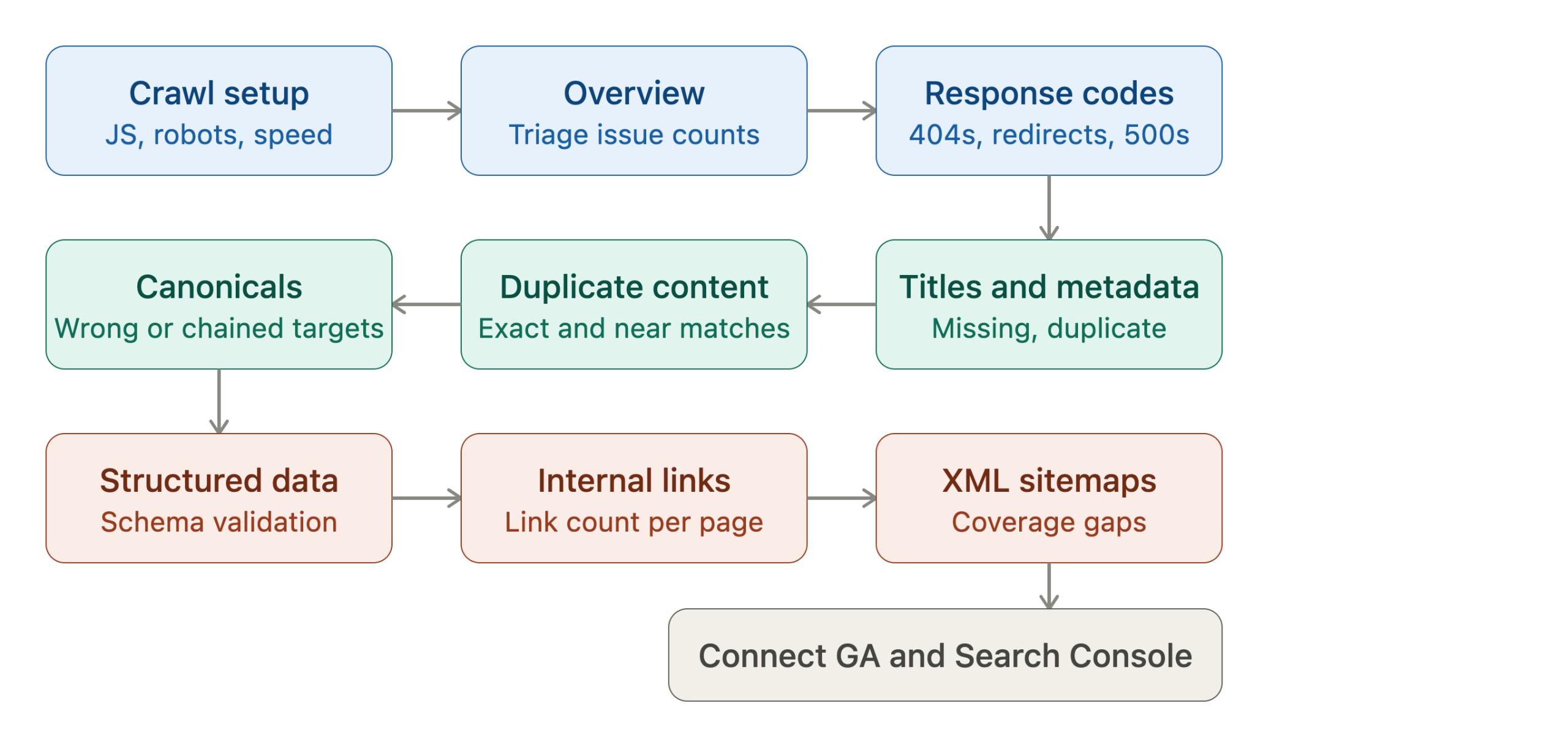
Getting the crawl set up right before you click start
The single biggest mistake I see with Screaming Frog is running the default settings on every site regardless of what that site actually needs. A few configuration choices at the start save hours of confusion later.
The free version crawls up to five hundred URLs, which is fine for a small local business site but will not get you through a mid sized ecommerce catalog. A paid license removes that limit and unlocks the features that make the tool worth using professionally, things like JavaScript rendering, custom extraction, and API integrations with Google Analytics and Search Console.
Before starting a crawl, I always check a handful of settings under the configuration menu.
- Respect or ignore robots.txt. I usually crawl with robots.txt respected first, so I see exactly what search engines are allowed to reach. A second crawl ignoring it can reveal content that is accidentally blocked.
- User agent selection. Setting the user agent to Googlebot smartphone shows you the site the way mobile search actually experiences it, which matters more than the desktop view for most sites now.
- Crawl limits and speed. Large sites need a URL limit set before you start, or you will end up with a crawl that runs for hours and eats memory you did not plan to give it. I also throttle speed on smaller shared hosting so the crawl does not look like an attack to the server.
- JavaScript rendering. If the site is built on React, Vue, or any framework that renders content client side, switching to JavaScript rendering mode is not optional. Crawling in text only mode on a JavaScript heavy site will show you a nearly empty page and lead to wrong conclusions about missing content.
Getting these four settings right before you start is the difference between a crawl that tells you the truth and one that quietly lies to you.
The overview tab tells you where to look first
Once a crawl finishes, I do not dive straight into individual reports. I start with the overview panel on the right side of the screen, which summarizes every major issue category by count. This is a triage tool, not a final answer. It tells me whether the site's biggest problem is broken links, duplicate content, missing metadata, or something structural like redirect chains, so I know where to spend my time first.
A site with a clean overview panel and low issue counts across the board usually means the technical foundation is solid and the real opportunity is elsewhere, in content or in paid strategy. A site with hundreds of flagged issues in three or four categories tells me exactly where the audit needs to focus.
Response codes reveal what search engines are actually finding
The response codes tab is where I check for the things that quietly bleed authority off a site. Three issues show up here more than anything else.
Four hundred and four errors are the obvious one, but the more damaging pattern is usually internal links pointing to those broken pages. A single 404 costs you very little. Fifty internal links pointing at that same 404 means the site has been bleeding link equity into a dead end for a long time, and nobody noticed because the page itself does not show up anywhere prominent.
Redirect chains are the second pattern worth checking carefully. A single redirect from an old URL to a new one is normal and harmless. A chain of three or four redirects stacked on top of each other slows crawling, dilutes some of the value passed through the redirect, and often signals that a site has gone through multiple redesigns without anyone cleaning up the old paths.
Server errors in the five hundred range are the third thing I check immediately, because they usually mean something is actively broken on pages that search engines are trying to crawl right now, not just a historical cleanup issue.
Page titles and meta descriptions catch what most sites miss
The page titles tab sounds basic, but it consistently finds issues that a manual review misses because nobody scrolls through every page on a live site checking each title by hand. Screaming Frog flags missing titles, duplicate titles across multiple pages, and titles that run too long or too short for how search engines display them.
Duplicate titles are the pattern I see most often on sites that use templated pages, like product categories or location pages that were built from the same template without anyone customizing the title tag for each one. This tells search engines the pages are more similar than they actually are, which can hurt how well each individual page ranks.
The meta description report works the same way and catches a related problem. Missing meta descriptions are not a huge ranking factor on their own, but they mean search engines write their own summary from whatever text appears on the page, which is often less compelling than a description written with intent. On a site with thin or duplicate descriptions, this is usually a quick fix with a real payoff in click through rate.
Duplicate content hides in places owners never check
The duplicate content report is one of the most underused features in the entire tool. Screaming Frog can flag exact duplicates, where two URLs serve identical content, and near duplicates, where the content is similar enough to compete with itself in search results.
I see this most often on ecommerce sites with filtered or sorted URL parameters that generate dozens of near identical pages, and on sites that migrated content without setting up proper canonical tags or redirects. Neither of these problems is visible from a normal walk through the site, because a visitor never encounters both versions of the page side by side. Screaming Frog surfaces it because it crawls every URL it can find, parameters included.
Canonical tags either protect your rankings or quietly cancel them
The canonicals report checks whether every page's canonical tag points where it should. This sounds like a small technical detail until you see how often it goes wrong. Common problems include pages with no canonical tag at all, pages that canonicalize to a completely different page by mistake, and canonical chains where page A points to page B which points to page C.
I have found canonical tags on client sites that were accidentally pointing every product page back to the homepage, a leftover from a development template that nobody caught before launch. That single mistake told search engines to ignore the entire product catalog as duplicate content. Nothing about the site looked broken to a visitor. It only showed up in a crawl.
Structured data errors are invisible until Screaming Frog finds them
Screaming Frog validates schema markup against current schema.org standards as part of the crawl, which is worth checking even on sites where a plugin or platform claims to handle schema automatically. Rank Math and similar plugins do a good job managing schema, but validation still catches conflicts, like a page carrying two competing schema types, or required fields missing from a schema block that a theme update introduced without anyone noticing.
I always tell clients that hand coding JSON-LD schema blocks on top of what a plugin already manages is one of the most common ways I see duplicate schema conflicts show up in a crawl. If your SEO plugin already handles it, adding more schema manually usually creates a problem instead of solving one, and this report is where that conflict becomes visible.
Internal linking reports show where your best pages are starving for links
The internal links tab shows how many times each page on the site is linked to internally, and this report changes how I think about a site's structure more than almost any other. A page can have great content and still underperform in search results if it only has two or three internal links pointing to it from the rest of the site, while a mediocre page sits one click from the homepage and collects dozens of internal links by default.
Search engines use internal link patterns as a signal of what a site considers important. If your best converting page is buried four clicks deep with almost no internal links, that mismatch between actual business value and crawl visibility is worth fixing before you spend more budget driving traffic to it.
XML sitemaps need their own audit, not just an upload
Most site owners treat their XML sitemap as something you set up once and forget. Screaming Frog can crawl the sitemap directly and compare it against the actual site crawl, which reveals two problems almost every time. Pages that exist in the sitemap but return errors or redirects when crawled, and pages that exist on the live site but are missing from the sitemap entirely, usually because a new page was published without the sitemap being regenerated.
Both problems slow down how quickly search engines find and re-crawl your content. Running this comparison periodically, especially after any site migration or platform change, catches drift before it costs you visibility on new pages.
JavaScript rendering settings decide whether you see what Google sees
I mentioned JavaScript rendering in the setup section, but it deserves its own explanation because of how often it changes the entire picture of a site. Modern search engines do render JavaScript before indexing a page, but they do not always render it perfectly or immediately, and rendering failures are common enough that checking for them directly is worth the extra crawl time.
Screaming Frog's rendered page feature lets you view a screenshot of exactly what the crawler saw after executing JavaScript, alongside the raw HTML before rendering. Comparing the two reveals content that only exists after JavaScript runs, which tells you whether critical text, links, or metadata depend entirely on scripts executing correctly. If a site's main content only appears after rendering and that rendering has any issues, search engines may be indexing a page that looks nearly empty, even though a human visitor sees a fully built page.
Custom extraction pulls exactly the data you need from every page
Beyond the built in reports, Screaming Frog lets you write custom extraction rules using CSS selectors, XPath, or regular expressions to pull specific data from every page in a crawl. I use this constantly for things the default reports do not cover, pulling every page's publish date, author byline, product price, or review count into a single exportable spreadsheet.
This feature turns Screaming Frog from an SEO audit tool into a general purpose data extraction tool for anything visible in a page's HTML. On a content heavy site, I often extract publish dates across the entire blog to identify which categories have gone stale and need fresh content, a question that would take hours to answer manually and takes minutes with a custom extraction rule.
Connecting Google Analytics and Search Console turns crawl data into business data
Screaming Frog can connect directly to Google Analytics, Google Search Console, and a handful of other data sources, layering real traffic and ranking data on top of the crawl. This is where a purely technical audit becomes a business conversation. A page with a broken canonical tag matters more if Search Console shows it used to rank well and has been losing impressions. A section of the site with weak internal linking matters more if Analytics shows it is where a meaningful share of conversions actually happen.
Without this connection, every issue in the crawl carries equal visual weight. With it, you can sort and prioritize by what is actually costing the business traffic and revenue, instead of fixing issues in whatever order they happen to appear in a report.
The AI integration is worth knowing about, even if you are not using it yet
Screaming Frog recently added an MCP connection that lets you run crawls and pull data using natural language through AI assistants, summarizing issues or building custom visualizations without manually clicking through every report. I have not made this a core part of my process yet, since nothing replaces sitting inside the actual data with an experienced eye. But it is a meaningful shift in how repetitive audit tasks get handled, and worth watching if you run frequent recurring crawls on the same site.
Why this level of detail actually matters
None of these reports are complicated on their own. What makes Screaming Frog valuable is running all of them together and understanding how the issues connect. A canonical problem interacts with a duplicate content problem. A weak internal linking pattern interacts with which pages Search Console shows losing visibility. Reading these reports in isolation gives you a list of technical issues. Reading them together gives you a picture of why a site is underperforming and which fixes will actually move the needle first.
This is the same process I run for every client before we touch a single dollar of paid media or plan a single piece of content, because fixing a site's foundation is almost always cheaper and faster than trying to out-spend a technical problem with more advertising. If you want a second set of experienced eyes running this kind of audit on your own site, that is exactly the conversation I have with new clients first.
Frequently asked questions
Is Screaming Frog free to use?
Yes, the free version crawls up to five hundred URLs, which works for a small site. A paid license removes that limit and unlocks features like JavaScript rendering, custom extraction, and integrations with Google Analytics and Search Console.
Do I need to know how to code to use the custom extraction feature?
You need to know basic CSS selectors, XPath, or regular expressions to target specific page elements, but you do not need general programming knowledge. Most browsers let you right click any element and copy its CSS selector directly, which covers the majority of use cases.
How often should I run a Screaming Frog crawl on my own site?
For most small business sites, a full crawl once a quarter catches drift before it becomes a real problem. Run one immediately after any redesign, platform migration, or major content update, since those are the times new issues get introduced.
Will Screaming Frog show me the same thing Google sees?
It gets close, especially with JavaScript rendering and the Googlebot smartphone user agent enabled, but it is not identical to Google's own systems. Connecting Search Console data alongside the crawl gives you the clearest picture of how Google is actually treating your pages.
What should I fix first after running a crawl?
Start with anything affecting pages that already drive meaningful traffic or conversions, which is where connecting Google Analytics and Search Console data becomes valuable. A broken canonical tag on a high traffic page matters more than the same issue on a page nobody visits.