Most business owners assume their analytics are fine once the Google Analytics code is on the site and a few reports are showing numbers. I understand why. The dashboard is full of charts, the traffic count looks reasonable, and everything seems to be working.
The problem is that GA4 and Google Tag Manager can look like they are working while quietly reporting bad data underneath. I run into the same handful of mistakes over and over when I audit a new client's setup. None of them are hard to fix once you know where to look, but they can throw off months of decisions if nobody catches them.
Here are the ones I see most often, and what to do about each one.
Most GA4 accounts are collecting data, but not the right data
GA4 is set up differently than the old Universal Analytics most business owners learned on. Instead of automatically tracking things like button clicks and form submissions, GA4 expects you to define what counts as an important action, called an event, and mark certain events as conversions.
A lot of installs never get past the basic setup. The account collects page views and sessions just fine, but nobody ever tells GA4 that a form submission, a phone click, or a quote request actually matters. That means your traffic numbers look normal while your lead data is essentially empty.
If you have never manually created or marked a conversion event inside GA4, this is very likely happening on your site right now.

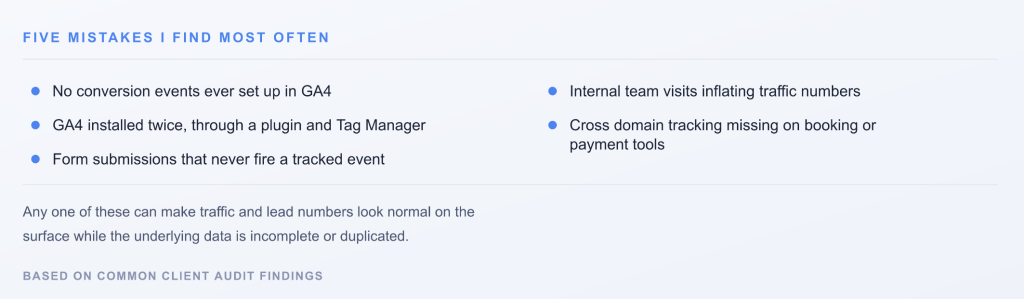
Double tagging is the most common mistake I find
This one shows up constantly. A website has GA4 installed directly through a plugin, like a WordPress SEO plugin or theme setting, and then GA4 is also added a second time through Google Tag Manager. Both tags fire on every page load.
The result is that every session, every page view, and every event gets counted twice. Traffic numbers look inflated, bounce rate gets distorted, and any conversion tied to that traffic becomes unreliable. This mistake is sneaky because the site still looks like it is tracking. The numbers are just wrong.
The fix is simple once you spot it. Pick one method, either the plugin or Tag Manager, and remove the other. I almost always recommend Tag Manager, since it gives you a single place to manage every tag on the site without touching code again later.
Your form does not count as a conversion until you tell GA4 it does
This connects back to the first mistake, but it deserves its own spot because it is the one that costs businesses the most. A contact form can submit successfully, send an email, and work perfectly from a customer's point of view, while GA4 has no idea it happened.
Without a event set up in Tag Manager to fire when that form submits, and without that event marked as a conversion inside GA4, that lead is invisible in your reporting. You can be generating real leads every week and still see a flat, empty conversion report.
If you run paid ads, this mistake is even more expensive, since your ad platform often pulls conversion data straight from GA4. A broken form event means your ad campaigns are optimizing toward nothing.
Internal traffic is quietly inflating your numbers
Every time you or your team visits your own website to check something, GA4 usually counts that as a real visitor. Multiply that by every employee checking the site regularly, plus developers testing changes, and your traffic and behavior numbers start to drift from reality.
GA4 has a built in way to filter this out, using an internal traffic rule based on your office or home IP address. Very few small business accounts have this turned on. It is a five minute fix that instantly makes your reporting more honest, especially for smaller sites where a handful of internal visits can meaningfully skew the numbers.
Cross domain tracking breaks more often than people think
If your business sends customers to a separate scheduling tool, payment processor, or booking platform on a different domain, GA4 needs to be told those domains belong together. Without that setup, GA4 treats the second domain as a completely new visit, which breaks the customer journey in your reports and can create duplicate sessions.
This mistake is common for service businesses using outside booking software, restaurants using third party ordering platforms, and any site that sends customers off domain to complete a purchase or fill out a form. If your conversion path involves leaving your main website at any point, this is worth checking.
A quick checklist to see if your setup is broken
You do not need to be technical to check for the biggest issues. Ask yourself these questions.
Do you have at least one event in GA4 marked as a conversion. Does submitting your contact form actually show up as an event in GA4 real time reports. Is GA4 installed in more than one place, such as a plugin and Tag Manager at the same time. Have you ever set up an internal traffic filter. If your customers ever leave your main domain to book, pay, or schedule, has anyone connected that domain to your tracking.
If you answered no or are not sure to more than one of these, there is a good chance your data has gaps you do not know about yet.
Getting your data right before you spend more on marketing
Clean analytics is not exciting work, but every decision you make about SEO, paid media, or where to spend your marketing budget depends on it being accurate. I have seen businesses cut a campaign that was actually working, and keep one that was not, simply because the underlying GA4 and Tag Manager setup was quietly broken.
This is exactly the kind of thing I help clients sort out as part of ongoing analytics support or a fractional CMO engagement, alongside the SEO and paid media work built on top of that data. If you are not confident your tracking is accurate right now, it is worth a second look before you make your next marketing decision.
Common questions about GA4 and GTM setup
How do I know if my GA4 is double tagging?
Open your site, right click, and view page source, then search for your GA4 measurement ID, which starts with G dash. If it appears in more than one script, or if you find both a plugin based Analytics setup and a Tag Manager container both firing it, you likely have duplicate tags.
Can I fix this myself, or do I need a developer?
Most of these fixes do not require a developer. Tag Manager is designed to let you add, remove, and adjust tags without touching site code. Some steps, like properly testing a form submission event, take a bit of technical comfort, but nothing here requires custom development work.
Will fixing these mistakes change my past data?
No. GA4 cannot go back and fix historical data that was collected incorrectly. Once these issues are fixed, your reporting going forward will be accurate, but anything collected before the fix stays as it was recorded.
How often should someone check this stuff?
I recommend a full review any time you redesign your website, switch marketing platforms, or add a new tool like a booking system. Outside of that, a check once or twice a year is usually enough to catch anything that broke quietly in the background.